The problem
Motion sells. Online converters wreck it.
LinkedIn autoplays GIFs in the feed, which makes them the cheapest way to show product motion. The catch is the pipeline. Free web converters drop the frame rate, smear the palette, stamp a watermark and still hand back a file too big to post.
Every short clip turned into a round of upload, wait, re-export, repeat. GIF Smasher replaces that loop with one drag and one button, tuned for the feed.
- ≥ 24 FPS
- Hard floor. Motion has to stay smooth, so the tool never trades frame rate for file size.
- ≤ 5 MB
- Default ceiling for a LinkedIn feed post. Presets go up to 8 MB when quality matters more.
- Local
- Client footage never leaves the machine. FFmpeg runs on the Mac, the browser is just the control surface.
- One click
- Sensible defaults first. Quality controls are tucked behind an Advanced drawer for when they're needed.
Full walkthrough · 0:46
One turkey, start to finish.
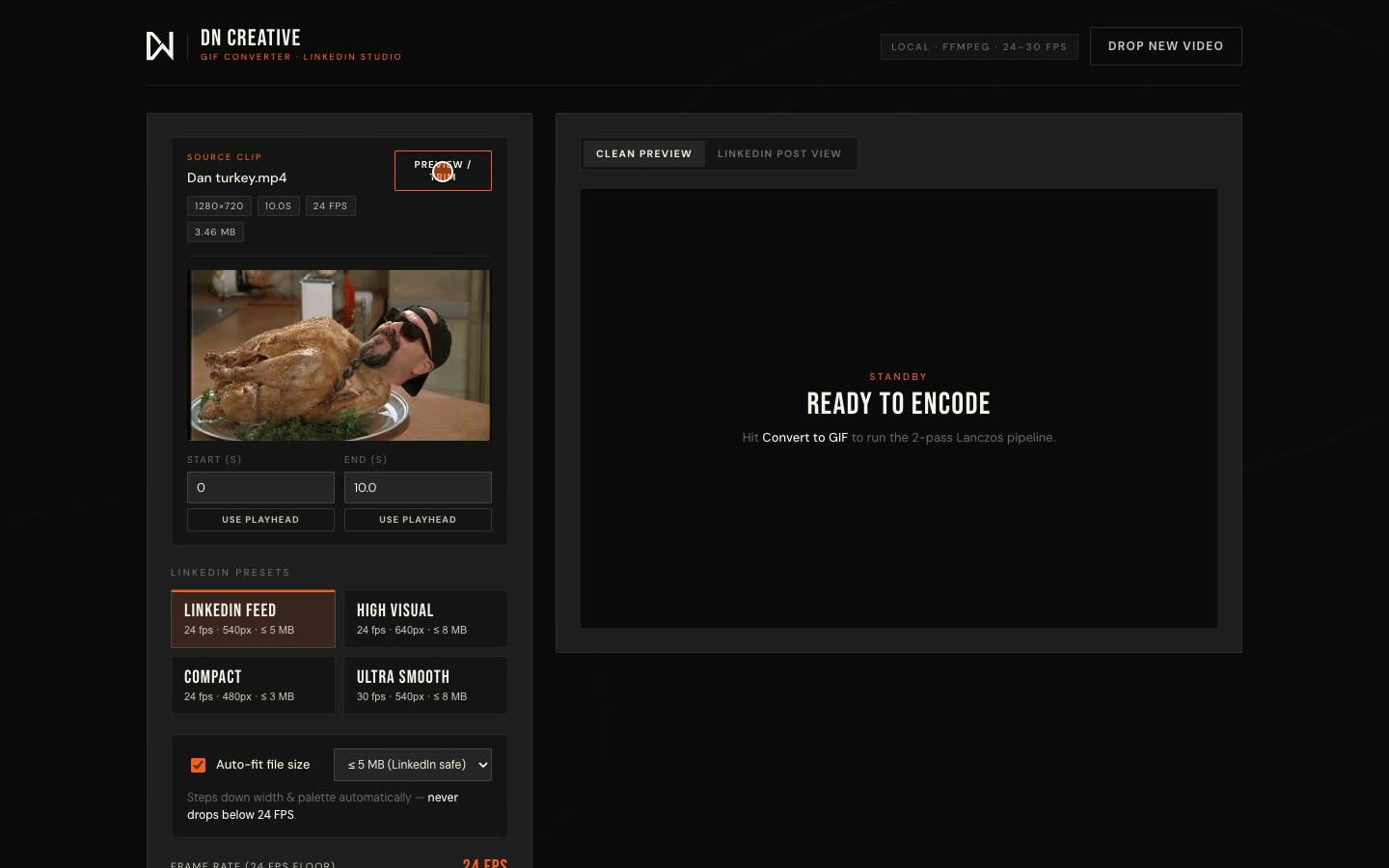
A real, unedited session: a 10-second, 1280×720 clip goes in, a 3.5 MB feed-ready GIF comes out. Jump to any step from the chapter list.
How it works
Two passes. Then it fits itself.
Most GIF quality is lost in the palette. GIF Smasher builds a custom palette for each clip, then checks the file against the target and steps down only what's safe to give up.
Read the clip
ffprobe pulls resolution, duration, fps and size so the presets can show what you're starting from.
Build colors
palettegen with stats_mode=diff spends colors on what moves, after a lanczos resize.
Dither clean
paletteuse with diff_mode=rectangle and bayer dithering keeps static areas still and files small.
Hit the target
Over budget? It steps down width, then palette size, and re-encodes. Frame rate never drops below 24.
The result
Feed-ready on the first try.
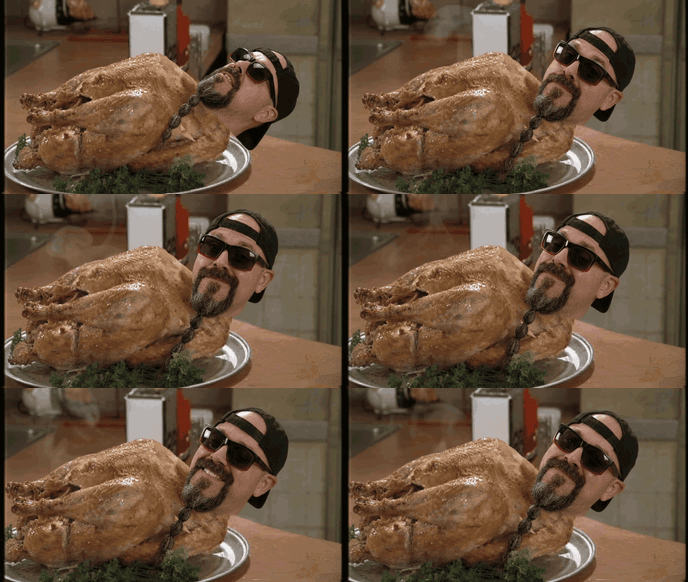
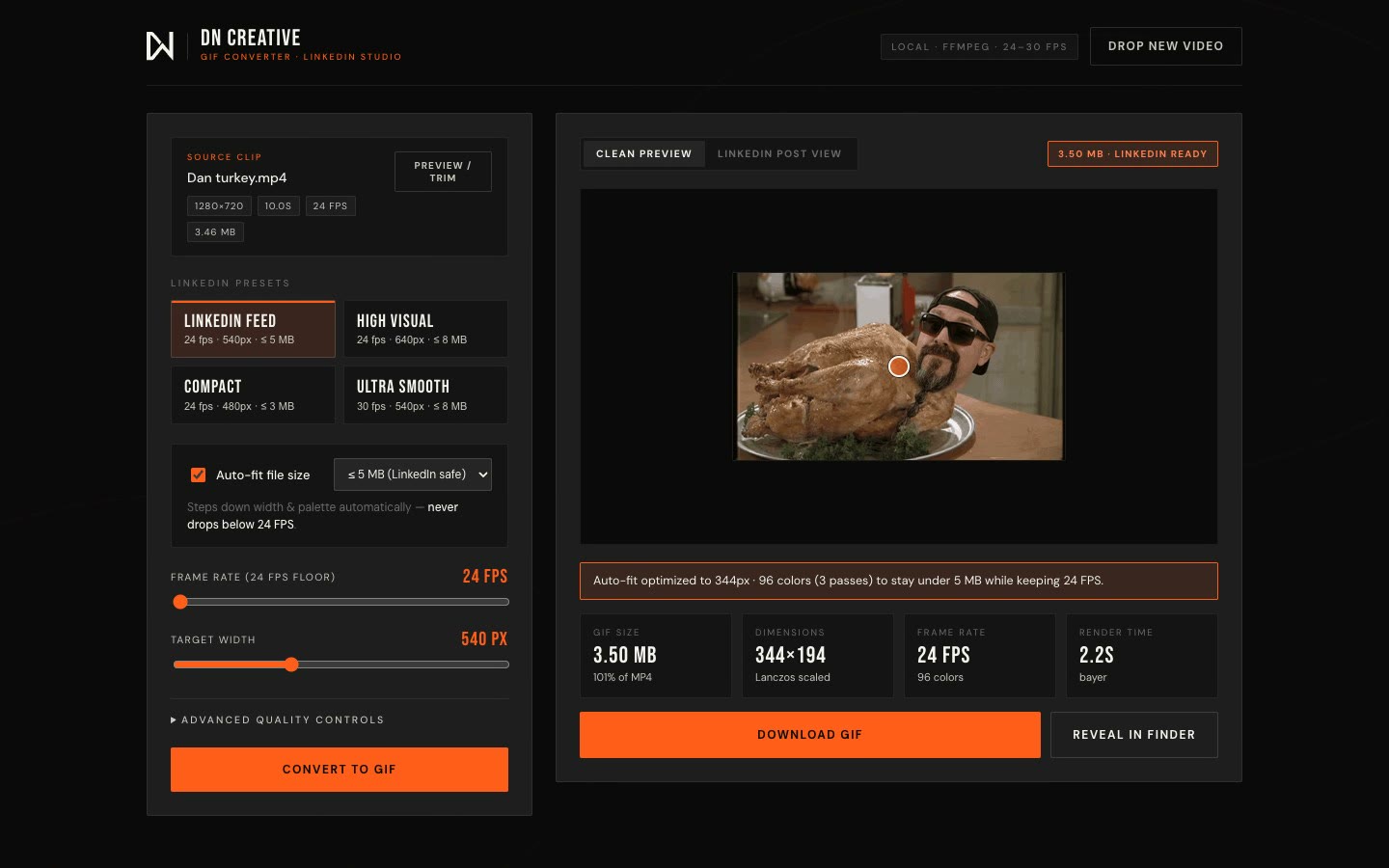
Auto-fit did its job. The 540px LinkedIn Feed preset came in over 5 MB, so the tool stepped down to 344px and 96 colors over three passes. It held 24 FPS the whole time. Source was 1280×720, 10.0s, 3.46 MB.
What I learned
Small tool. Real opinions.
Lock the one thing that matters
Choppy motion is what makes a GIF look cheap. Making 24 FPS non-negotiable turned every other setting into a trade-off the tool can make on its own.
Preview where it'll live
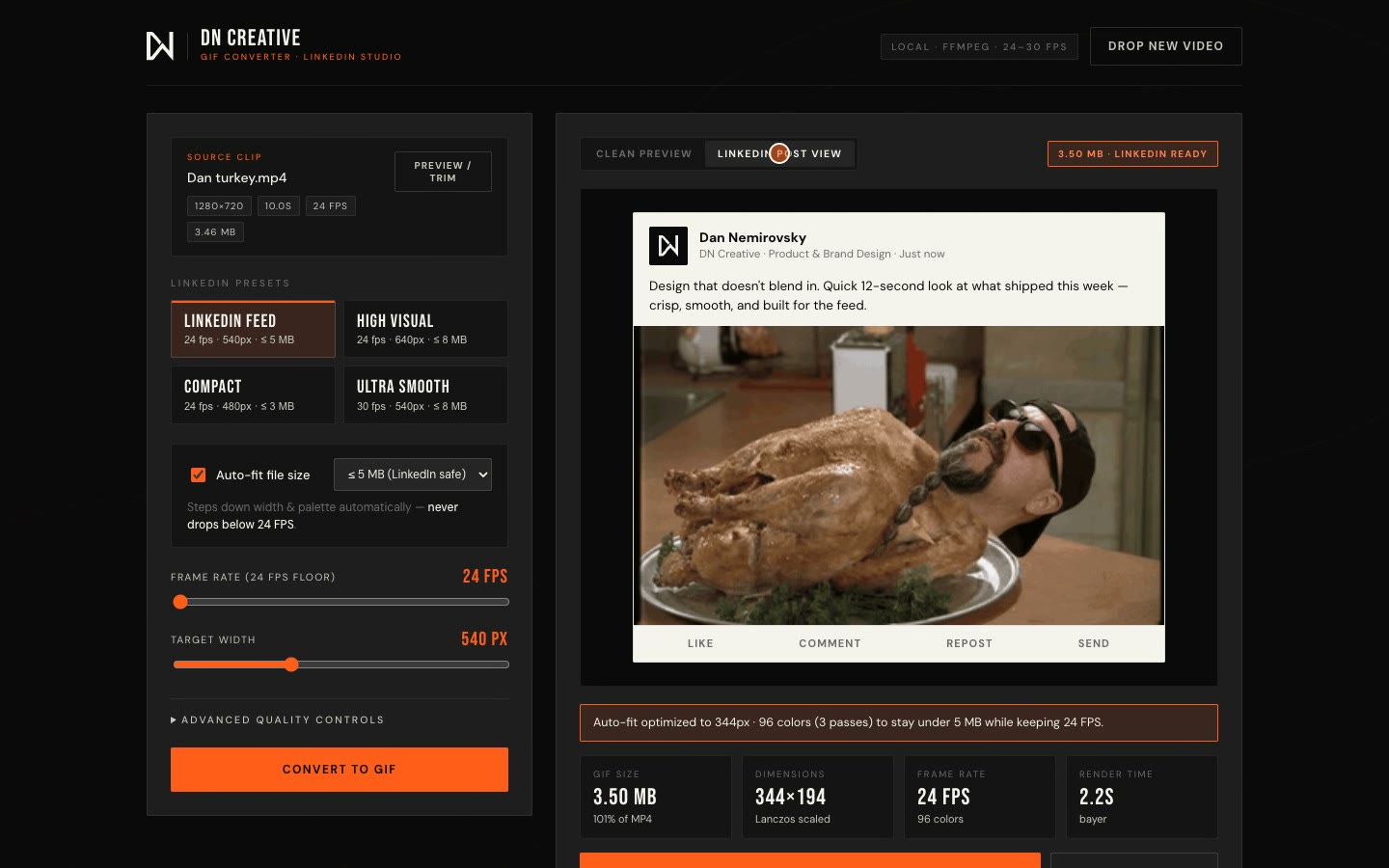
The LinkedIn mockup answers "will this look right?" before anything gets posted. It cut most of the re-export loop.
Defaults over dials
Four presets cover nearly every post. Dither mode, palette stats and bayer scale stay in the drawer for the clips that need them.